
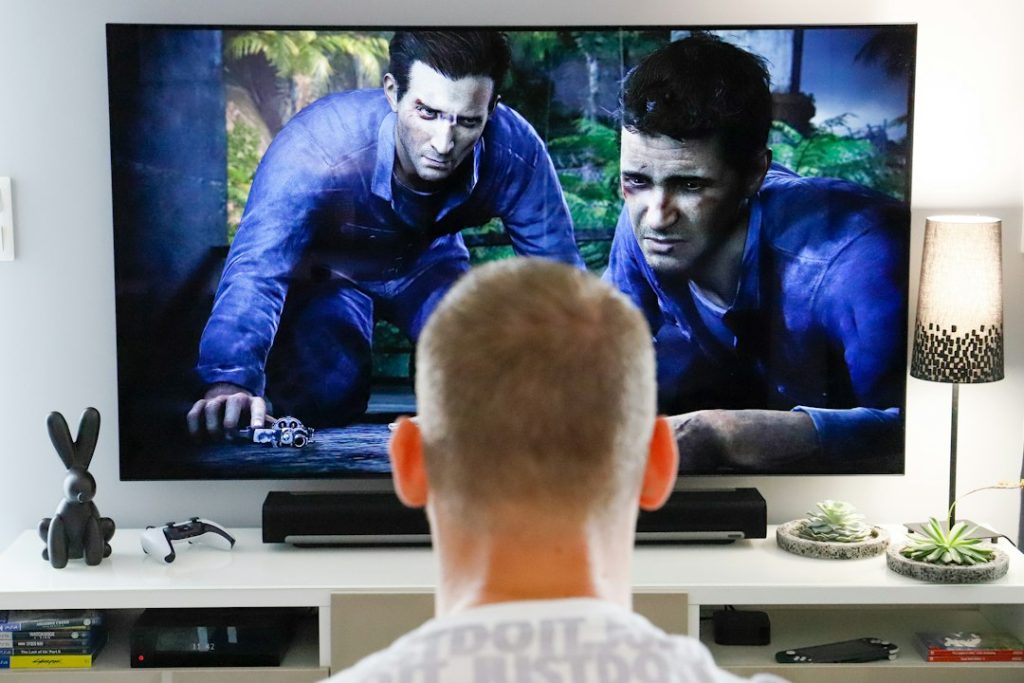
Owning a 4K TV does not mean every Netflix film plays in 4K. In practice, the quality actually available depends on the title, your plan, the app, the device and the network. Here is a clear way to check, without unnecessary jargon.
The key points in 30 seconds
- Look for the 4K or 4K HDR badge on a title’s page in Netflix, from the device you are using.
- Check that your plan includes Ultra HD and that your whole set-up supports the format.
- Netflix recommends a stable internet speed of at least 15 Mbps for 4K.
- An HDR picture is not necessarily a separate confirmation of resolution: read the badges carefully.
1. Check the badges on your TV
Open Netflix on the TV or connected player you normally use. Then, on a film or series page, look for the video quality labels: HD, 4K, 4K HDR, Dolby Vision or HDR.
Important: according to Netflix, these badges show the quality available for the device you are browsing on. As a result, a title offered in 4K may appear as HD if your equipment cannot do better. Some devices show only one badge even when several formats are available.
2. Confirm that your subscription includes 4K
However, plans and their features can vary by country. Open your subscription details from your Netflix account and look explicitly for Ultra HD or 4K. Don’t simply rely on the fact that your TV carries a 4K logo.
3. Test the speed on the device that plays Netflix
So run the test on the TV or connected box, not just on your phone next to the router. In the Netflix TV app, the help menu includes, depending on the interface, a Check your network. You can also use fast.com in a browser.
Netflix’s officially recommended minimum is 3 Mbps for 720p HD, 5 Mbps for 1080p Full HD and 15 Mbps for 4K Ultra HD. These are recommendations for a stable connection, not a guarantee of 4K in all circumstances.
4. Check the HDMI chain from end to end
If you use a TV stick, a box, a console or an amplifier between Netflix and your screen, check every link in the chain : device, HDMI port, cable and screen. Netflix also states that a 4K/HDR chain may require a port compatible with HDCP 2.2 or later and a suitable HDMI cable.
If your Netflix app is built into the TV, this cable issue between box and TV obviously does not apply. It remains relevant if you connect external devices.
5. Check the playback settings
Finally, in your Netflix profile’s playback settings, make sure data usage per screen has not been limited to a lower quality. Netflix recommends High or Auto for 4K. However, the service adjusts the resolution when the network is unstable, to avoid interruptions.
So when a title starts, you may see a softer picture that then gains detail. Wait a few moments before concluding that 4K isn’t working.
4K, HDR and Dolby Vision: don’t confuse the terms
4K describes the level of spatial detail in the picture. HDR relates to brightness range and colour; Dolby Vision is an HDR technology. These pieces of information can coexist, but they do not answer the same question. For the differences between HDR formats, see our guide HDR10 and Dolby Vision.
Checklist: Netflix still looks blurry on a 4K TV
- Try a title whose page clearly offers 4K on your device.
- Check your Netflix plan and the profile’s quality setting.
- Run the network test directly on the TV or box.
- Check for updates to Netflix and to the device’s system.
- If you use an external box, check the output resolution, the port, the cable and HDCP.
- Restart playback and see whether the resolution increases after a few moments.
Frequently asked questions
Does a 4K TV improve a Netflix film in HD?
The TV can scale the pixels to fit its panel, but that does not turn an HD source into a true 4K stream with the corresponding detail.
Why does Netflix show Dolby Vision but not 4K?
On some devices only one badge is displayed. Netflix says a Dolby Vision badge may be shown even when a compatible title can also play in 4K. Check your player’s documentation for the actual resolution.
Netflix shows a black screen with sound: is it a 4K problem?
Not necessarily. This symptom has several technical causes. Our article Netflix: black screen with sound offers a suitable step-by-step approach.